

TORRENT WORLD
github.com-IvanSobolev-Neo3dEngine_-_2026-06-14_02-26-54
IvanSobolev
A minimalist CPU-based 3D console engine in C# (.NET 8) built from scratch. Features Raycasting/Raytracing, dynamic lighting & shadows, .obj loader, and custom TCP-based multiplayer with real-time chat. No external graphics APIs. English | Русский Neo 3D A minimalist console 3D engine with game development elements Changelog | WIKI About the Project Neo 3D is a minimalist 3D engine written in C# that runs entirely inside the system console. The project is built without using third-party graphics libraries. All calculations—ranging from custom vector mathematics to raycasting/raytracing and network code—are executed on the CPU. In the future, we plan to port the most demanding computations from the CPU to the GPU using Vulkan. The project was created for demonstration and educational purposes for a YouTube video . The default branch contains the stable version of the project. There is also a long-lived development branch and short-lived feature branches. Scene Rendering Example (v0.1.1) Features Renders geometric spheres and .obj files using Raytracing. Intersection optimization via bounding sphere checks before performing detailed polygon calculations. Light attenuation calculation based on distance. Lambertian diffuse lighting based on surface normals. Shadow rendering by casting shadow rays from the intersection point to the light source. Multithreaded rendering using Parallel.For to distribute pixel calculations across all CPU cores (with future plans to move these computations to the GPU using Vulkan). Brightness mapping to a character gradient " .:!/r(l1Z4H9W8$@" for console output. Frame buffering and batch rendering of identical colors to minimize slow console system API calls. Custom Vector3 , Vector2 , Ray structures and rotation matrices. Implementation of the Möller–Trumbore algorithm for ray-triangle intersection. An input system for efficient keyboard polling using system APIs (adapting to the host OS via IInputProvider ). Supported providers include: User32.dll on Windows, X11 (with Wayland disabled) on Linux, and DotNet Input (an inefficient fallback with limitations on simultaneous key presses and difficulties tracking modifier keys like Shift , Ctrl , Alt ; used when system access to User32 or X11 is unavailable). A custom client-server module based on a TCP architecture for game data transmission. We plan to add a stable UDP interface in the future to increase performance in online scenes. Custom binary packet serialization, automatic routing via stable type-hash IDs, and an event subscription system. Examples of a working multiplayer lobby featuring player position synchronization and text chat. An example scene demonstrating how to import and render a .obj model. Automatic console size detection and scaling to fit the maximum terminal size (determined at startup). Run Requirements When running on Linux, Wayland must be disabled for the terminal window (since Wayland does not grant the terminal direct access to X11). There are many ways to disable it. If Wayland is active, a warning will be displayed when starting a scene. The easiest way to launch a terminal without Wayland is to use an independent terminal emulator (such as xterm ) forced to run in X11 compatibility mode (via XWayland): bashapt install xtermWAYLAND_DISPLAY= xterm In the resulting xterm window, navigate to your project directory and run the build command. Build Instructions Neo 3D does not rely on third-party libraries. To run it, you only need the .NET 8.0 SDK or newer.1. Download or clone the repository from GitHub.2. Navigate to the SampleGame folder inside the project using your terminal and compile: dotnet run --configuration Release 3. If configured correctly, you will be able to control the active scene. Use W , A , S , D to move; Space , Shift (or Shift + any key when using the dotnet input provider) to control height; and the arrow keys to rotate the camera. The + and - keys increase and decrease the scene's light intensity. In the scene with the 3D object, you can hold down the Ctrl key to move the light source. Example of Creating a Custom Scene (C#) (Interacting with the Engine API) ```csharpusing _3dEngine;using _3dEngine.AbstractClass;using _3dEngine.Implementation;using _3dEngine.Interfaces;using _3dEngine.Shape; public class PreviewScene : Scene{ private Camera _camera; private Sphere _sphere; private Light _light; public PreviewScene(IDisplaysManagerAsync manager) : base(manager) { }public override void Start(){ // Create a camera _camera = new Camera(new Vector3(-10, 0, 0), Vector3.Zero); SetMainCamera(_camera); // Create a red sphere at the origin _sphere = new Sphere(Vector3.Zero, Vector3.Zero, r: 1.5f); _sphere.Color = ConsoleColor.Red; AddDisplaysObject(_sphere); // Add a light source _light = new Light(new Vector3(-4, 3, -2), lightPower: 150f); AddLight(_light);}public override void Update(){ // Rotate or move objects every frame using GameTime.GetDeltaTime()} }``` To run your custom scene, specify
Internet Archive
- Download torrent · · 242795 bytes
f18392d2ea29f95527ffcf11aea32f1e4ddd48fc
Related titles
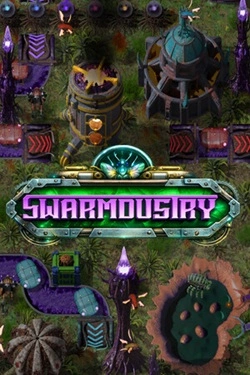
Swarmdustry
2026
Initially, a significant portion of the work has to be done manually, but over time manual labor gives way to automation. Different presta
Open card

How to Fish
2026
At the beginning, you practically have nothing, so you'll have to buy equipment with money earned from fishing. You can catch fish, sell
Open card

Dumb Ways to Build
2026
For creating the necessary structures, almost any object that happens to be at hand will suffice. Details can be picked up, rotated,
Open card

Drunken Rogue
2026
Alcohol does not hinder the heroine from fighting here, but rather becomes the source of her strength. The stronger Lita is drunk, the more powerful her abilities become.
Open card