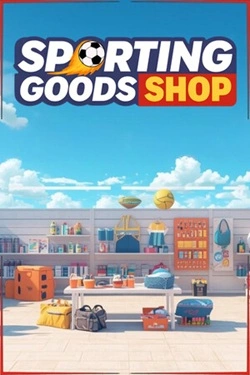
Sporting Goods Shop
2026
This is a first-person game simulator where you take on the role of a sporting goods store owner.
Open card ARTICSTRACKER
Uploaded by SMOOREZ. Firmware made by ruDronga
This is the port of RetroArch made by a 4pda member (ruDronga) that can be used on the cheap Game Stick Lite units that are sold around the web. There will be a guide on how to flash this onto the Game Stick in a video but for now here is some basic instructions. Step 1: Get a fresh MicroSD Card of 16GB of higher prepared (I recommend using Diskpart to clean the card so it's completely good to go). Step 2: Using a Windows PC, download Win32DiskImager from here: https://sourceforge.net/projects/win32diskimager/ Step 3: Download the RetroArch file from this page. Step 4: Unzip the downloaded archive to any destination, but you only need the file "GSTL5_retrostick_v01.img" to flash onto your SD Card. Step 5: Install Win32DiskImager and make sure you have your SD Card connected to your PC. Step 6: In Win32DiskImager, choose the file letter that matches your SD Card. Then go to the folder icon and find the "GGSTL5_retrostick_v01.img" file and accept. Step 7: Click write and accept anything that pops up. Step 8: This process can take up to 20 minutes to copy all the files to the Micro SD Card (depending on the speed of your card and card reader to your PC). Once it's done the program will tell you so. Step 9: Once done you will see a whole heap of windows pop up - just close each one - DO NOT FORMAT anything else. Step 10: Now we need to just resize the partition of Retroarch, in the downloaded folder you will find some software called DiskGenius. Go ahead and open that up. Step 11: On the left you will see a list of all drives, go to the one that has Retroarch on it (should be Removable Disk), right click and extend partition. Step 12: Click start and let the program do what it needs to do. Step 13: Once it completes, check to make sure your MicroSD Card is now the correct capacity. Step 14: Put your roms and optional cores onto the card and then put the MicroSD Card back in the Game Stick and connect it up to your TV and patiently wait for it to boot. And that's it! With RetroArch you now have the freedom to play a lot more on the console, the janky stock firmware is horrific. Make sure to keep the original SD Card just in case you want to go back to Stock for some reason :)
9a0928a4202da605f97d90a445bf217bd2ee82ee2026
This is a first-person game simulator where you take on the role of a sporting goods store owner.
Open card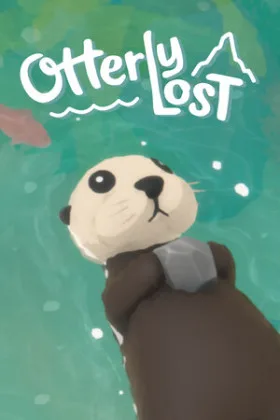
2026
Research is built around free movement across diverse natural environments. Otto can swim through underwater kelp, dive in
Open card
2026
Gameplay revolves around the use of authentic tools and methods applied in real cyber environments. You analyze
Open card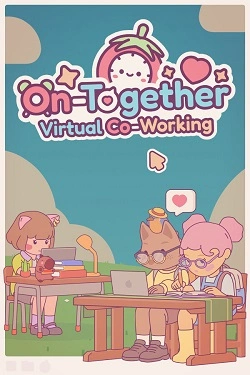
2026
This is a productivity environment with tools including a customizable Pomodoro timer and a task list for structured
Open card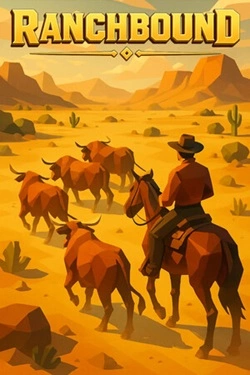
2026
Buy land, expand your farm and invest in the development of the territory. Around you there are colonist settlements, indigenous tribes and m
Open card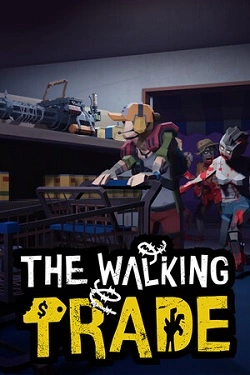
2026
Managing a store requires a well-thought-out spatial organization. Shelves, aisles, and checkout areas must be arranged so that purchas
Open card
2026
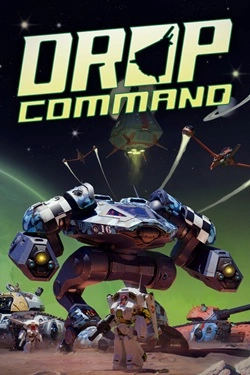
During combat, you can choose different ways to control your army. Go into battle alone, lead a small group, or issue orders
Open card ARTICS TOOLSОнлайн-инструменты для работы с изображениями, файлами, QR-кодами и веб-технологиями.
 ARTICSNETДомены, хостинг, DNS, SSL, электронная почта и управление интернет-сервисами в единой платформе.🚧 Скоро запуск · В разработке
 ARCTICS NETWORKПроверка IP-адресов, доменов, DNS-записей и диагностика сетевых подключений.